
Original icons restored
The Originals Vault searches your Mac for genuine manufacturer artwork, verifies each icon’s source, and offers it first in the picker — no guessing, no web downloads.
v0.13.1 · Signed & notarised by Apple
Cloned and AI-built apps all ship with the same borrowed icons and names, and macOS hides “which app opens this?” across a dozen panels. IconCraft fixes both: it restores genuine original icons and names, lets you customise any app, and gathers your default apps into one place. One window, fully reversible, free and open source.
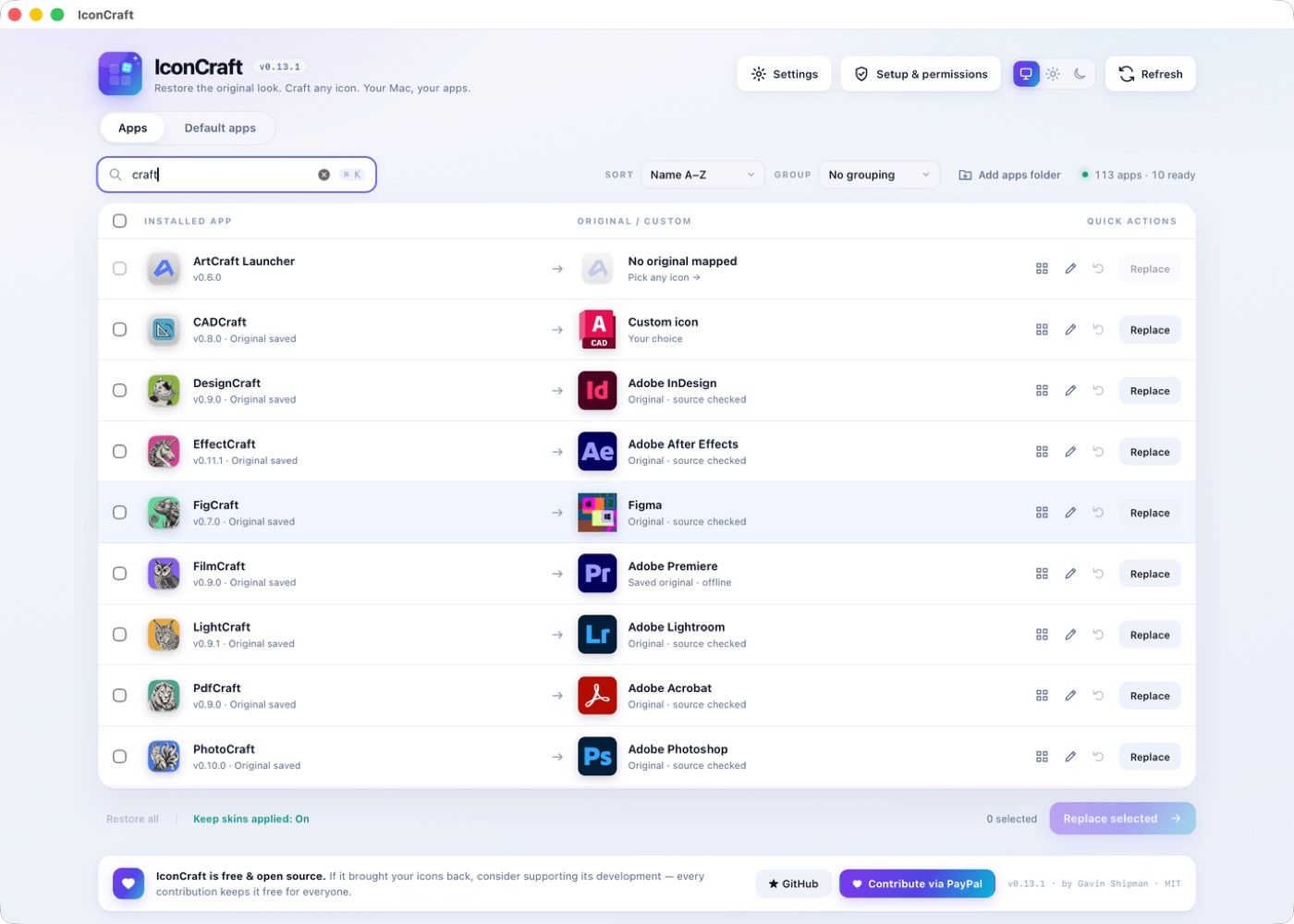
Apps built with today’s AI tools and clone templates often arrive wearing a stock icon and a generic name, so your Dock fills with lookalikes. Meanwhile the genuine originals are still on your Mac — just not attached to the apps that need them. IconCraft hunts those originals down, checks where each one really came from, and puts them back. And if you’d rather give an app a look of your own, that’s two clicks instead.
The Originals Vault searches your Mac for genuine manufacturer artwork, verifies each icon’s source, and offers it first in the picker — no guessing, no web downloads.
Borrow the icon of any installed app or drop in any image file. IconCraft fits and squircle-clips it so it looks native in the Dock and Launchpad — running apps included.
Give apps names you recognise. Every rename is journaled with the original kept, so restoring is exact — per app, or everything at once.
Browser, email, PDF, images, movies, audio, text, source code, HTML, ZIP and calendar files — see what opens each today and switch it in one click, system-wide.
A tiny background keeper re-applies your skins if an app update or another tool reverts them — even while IconCraft is closed. Control it from the menu bar.
Instant search (⌘K), sort A–Z, Z–A or customised-first, group by status or folder, and replace icons in bulk. Your arrangement is remembered between launches.
IconCraft lists every installed app with the icon it wears now and the original or custom icon ready to apply. Originals stream in as they’re verified. Got apps outside /Applications — in your home folder, Setapp, another drive? Add apps folder brings them in too.
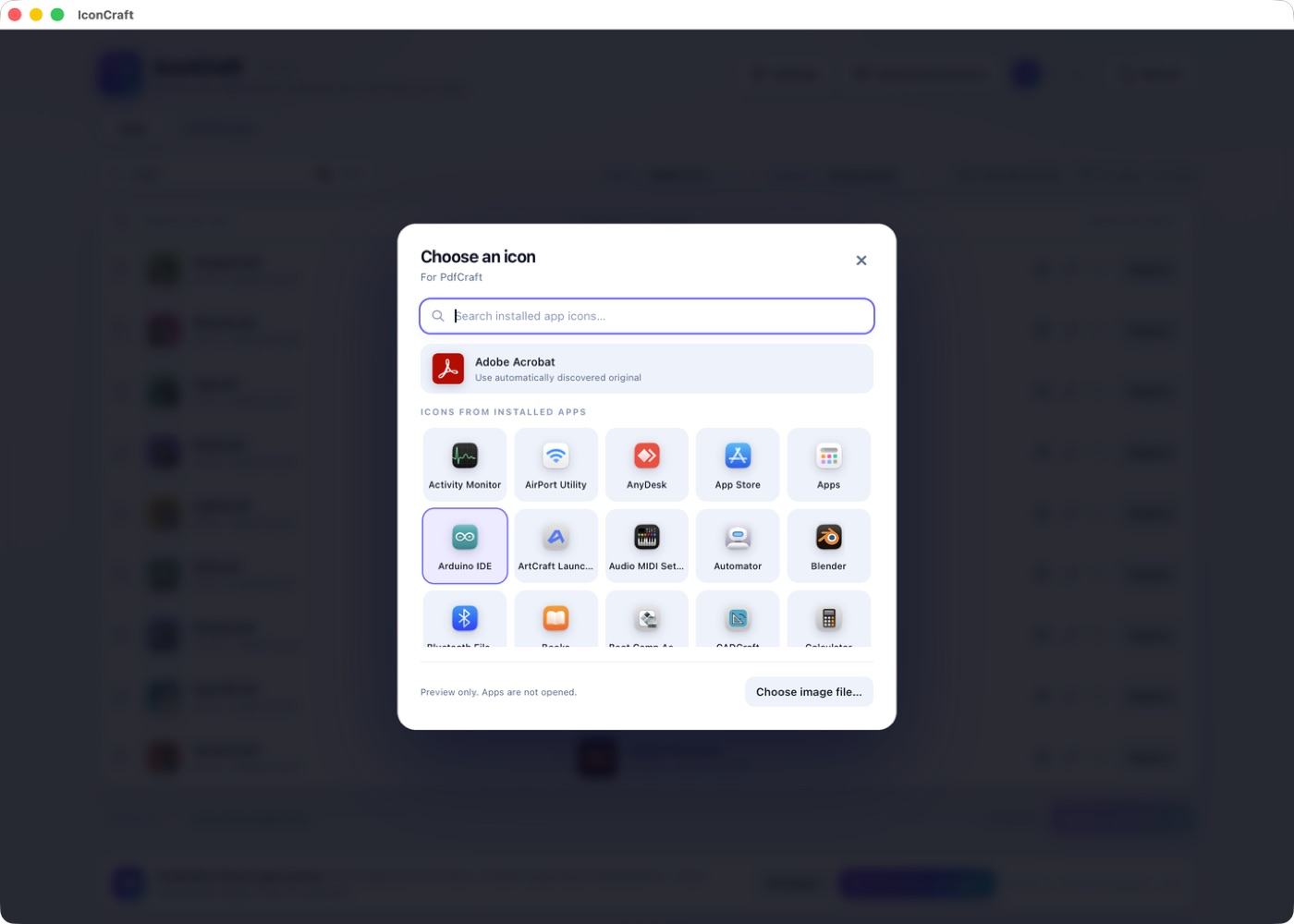
The picker leads with the automatically discovered original, then every installed app’s icon as a donor grid — plus any image file you choose. It’s preview-only: nothing opens, nothing changes until you hit Replace.
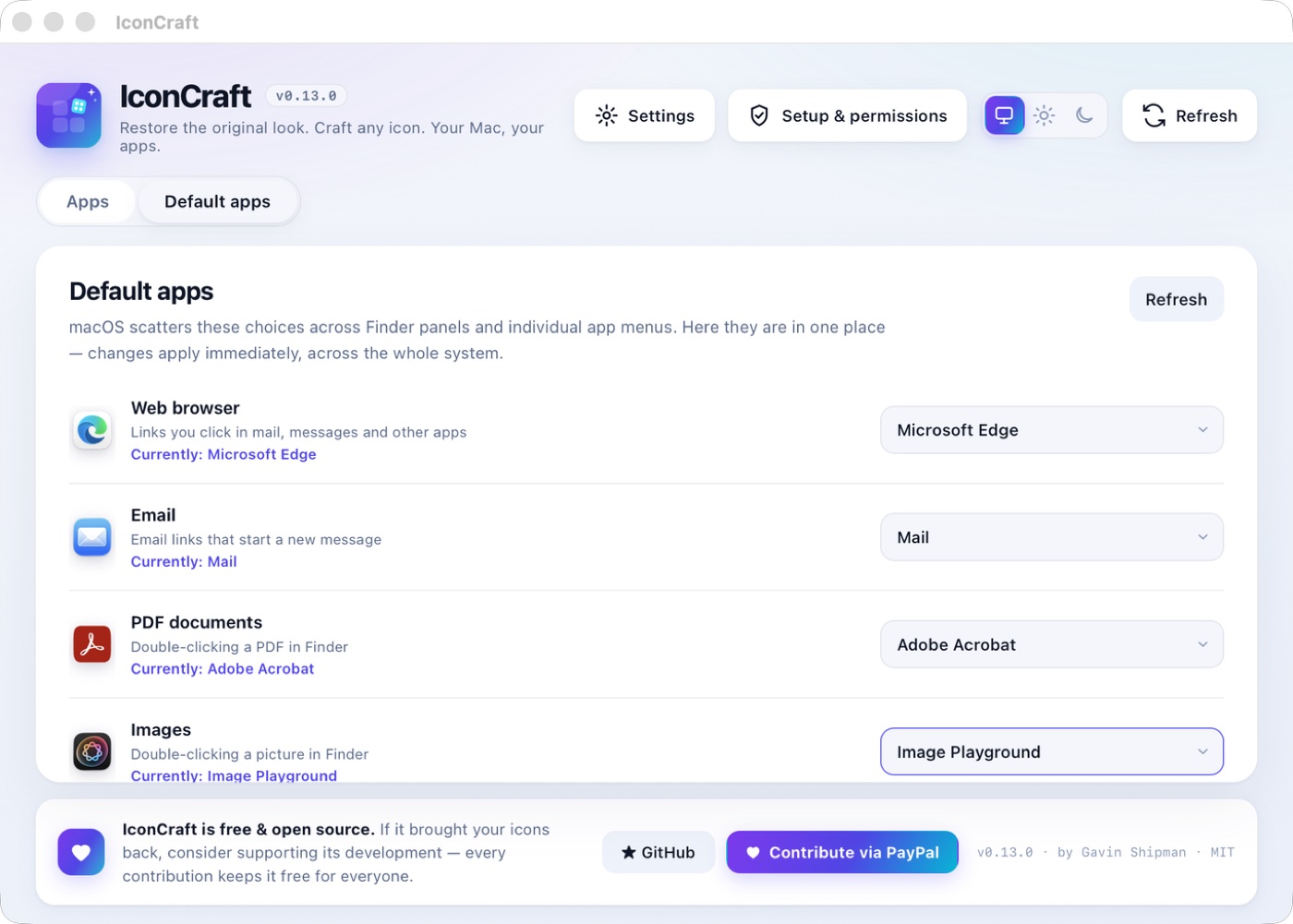
macOS scatters these choices across Finder Get Info panels and individual app menus. IconCraft gathers eleven of them — web browser, email, PDFs, images, video, audio, text, source code, HTML, ZIP archives and calendar files — with the current default and every candidate. Changes go through the same LaunchServices Finder uses; macOS may show its own confirmation, and IconCraft verifies the result before telling you it worked.
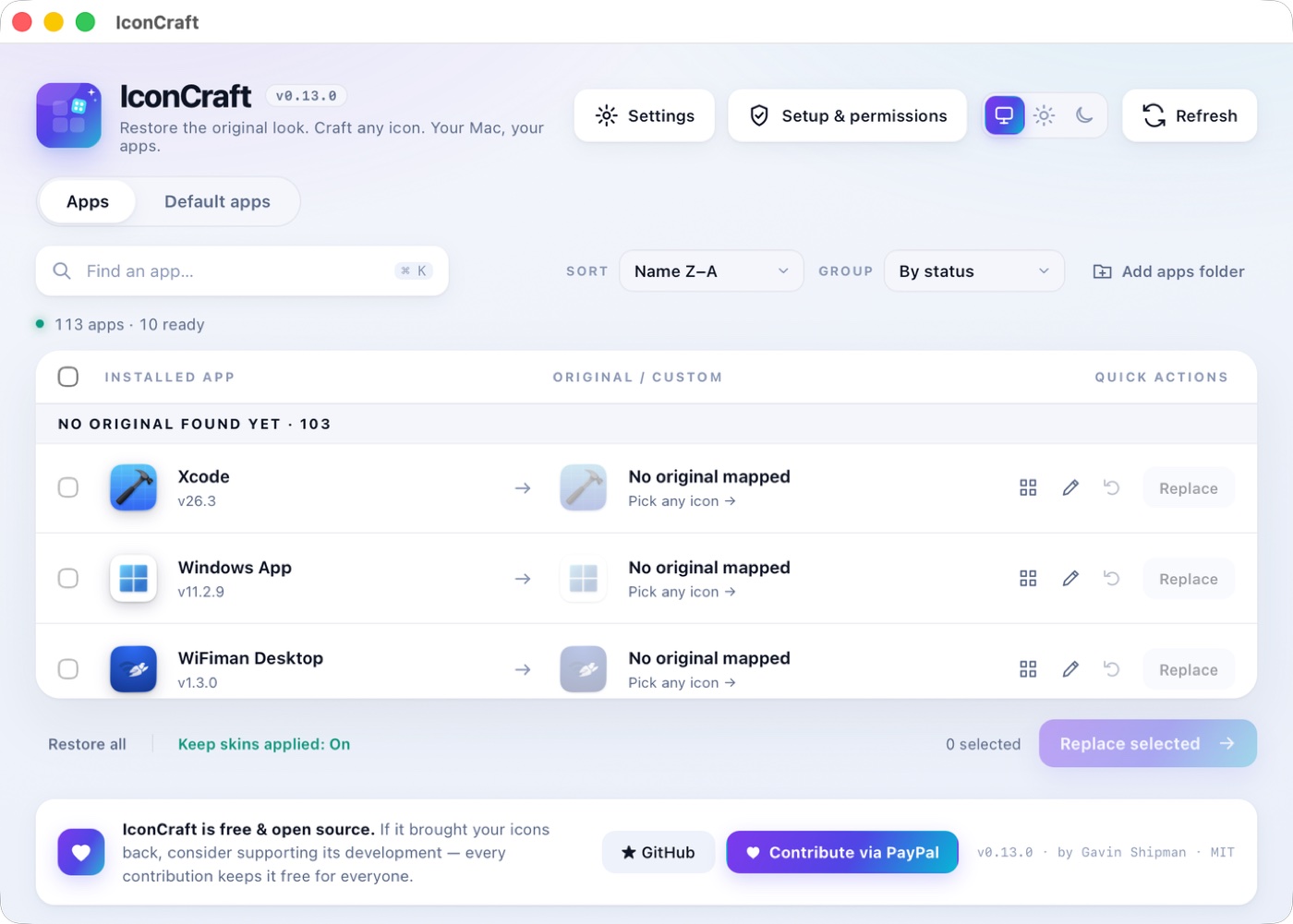
A–Z for finding, Z–A for the newest, customised-first for reviewing your work. Group by status to see what’s still untouched, or by folder to see where things live. Headers lead every group, counts included — and IconCraft remembers your choice.
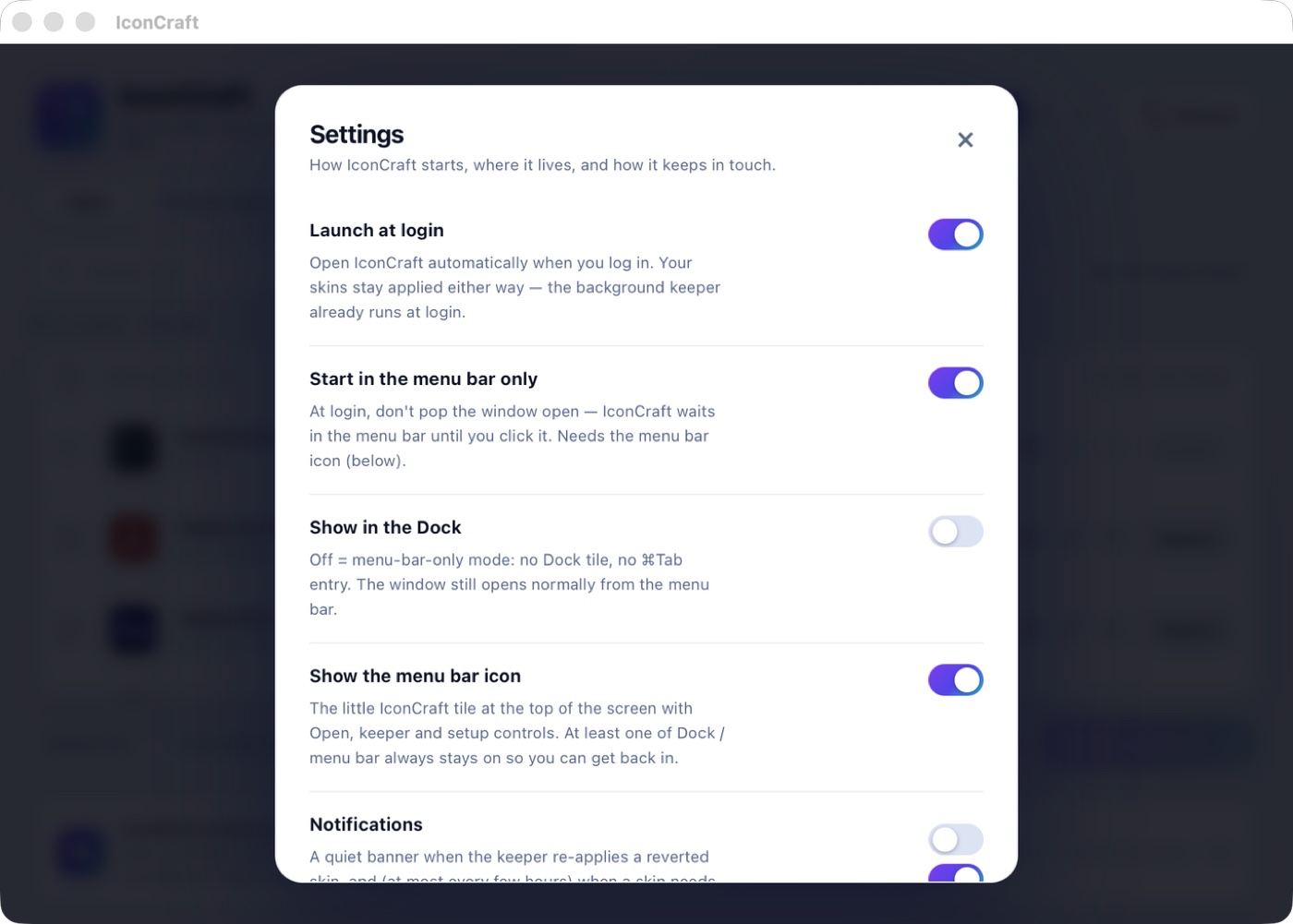
Launch at login, start quietly in the menu bar, show or hide the Dock tile and menu bar icon (it never lets you hide both — there’s always a way back in), gentle notifications when a skin needs attention, and automatic update checks. Maintenance is one click: refresh the icon cache or open your data folder.
Signed and notarised by Apple — double-click, no warnings. Installer package or ZIP, your choice.
One honest checklist: what’s ready, what’s optional, and a genuine live test of the one permission that matters (App Management). No pretending a settings page visit proves anything.
Choose icons and defaults, hit Replace. Changed your mind next week? Restore any app — or all of them — exactly as they were.
spctl --assess --type execute /Applications/IconCraft.appFree and open source, forever. Version 0.13.1 · Universal · macOS 12.3 or later · release notes
The guided route: installs IconCraft into /Applications and explains the first-run Setup & Permissions on the way through.
The signed, notarised app in a ZIP, with a one-click install script and checksums if you prefer to see exactly what lands where.
Download .zipIconCraft is MIT-licensed open source. If it brought your icons back, a coffee keeps development moving — entirely optional, always appreciated. Stars help other Mac users find it, and thoughtful issue reports make it better.
Yes — free and open source under the MIT licence, no tiers, no ads, no account. If it’s useful, an optional PayPal contribution supports development.
No. Changes are journaled before they’re made and can be restored per app or all at once. Original artwork is verified before it’s offered, and default-app changes are confirmed by re-reading the system state.
Changing another app’s icon or name means writing inside that app’s bundle, which macOS guards with App Management permission. IconCraft tests it genuinely — the same harmless write check a real change performs — and is upfront about what it does and doesn’t need.
Any Mac on macOS 12.3 or later. The download is a universal binary for Apple Silicon and Intel.
Release builds are signed with a Developer ID, hardened, and notarised by Apple, then code-signed all the way down. Double-click and it opens — no “unidentified developer” detour.
No telemetry, no analytics, no account. The only optional network call is the update check against GitHub releases, which you can turn off in Settings.
That’s the keeper’s job: the background agent notices and re-applies your skin, even with IconCraft closed, and can let you know it did. If it ever can’t, it says so rather than failing quietly.
GitHub counts every release-asset download; the counter on this page reads those numbers live from the GitHub API. No tracking pixels here.